Join a box to your fleet
Press one button on each box. One box shows a code; you type it on the other. Cancel works on either side.
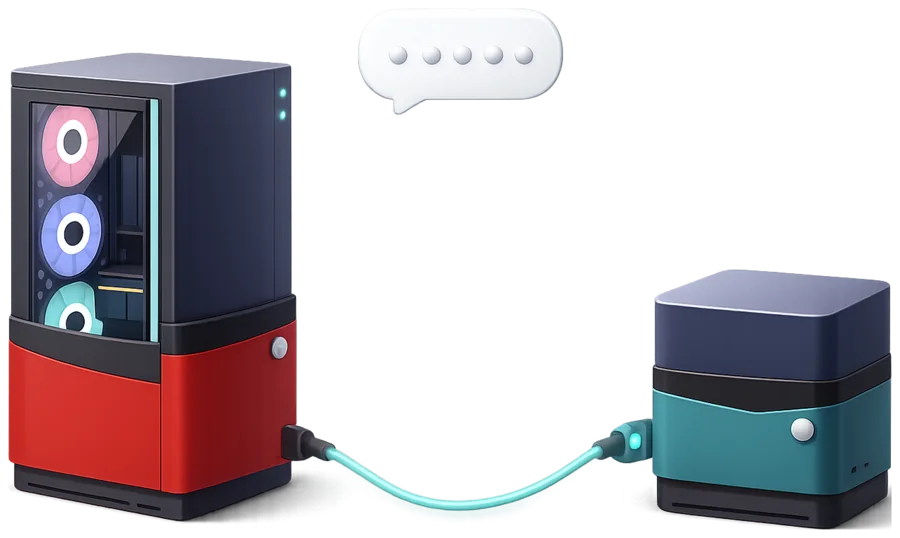
- Put both boxes on the same networkFinish setup on the new box and plug it into the same router as the box you already have.
- Press Add a computer on bothOn each box, open Settings › Intelligence Fleet and press Add a computer. Each one is ready to join for ten minutes.
- Press Join itWithin a few seconds the other box appears under On this network. Press Join it.
- Say yes at the other box, then type its codeThe other box asks Is it yours? Press Yes — show the code, and it shows a six-character code. Type that code on the box where you pressed Join it. Both screens then say Joined. One try per code: if it doesn’t match, the join is dropped and you start again.
- Choose what to shareApps and models are shared one item at a time. You can turn any of it off.
Only join a box whose screen you can see. That is how you know it is yours, and how a stranger’s box in a shared office stays a stranger.
01Add a computer on both, then Join it on one
The old rigOn this networkOld Faithful · Desktop PCJoin it
Old FaithfulIntelligence Fleet1 computerAdd a computer
02Say yes on the other
The old rigNow go to Old Faithful’s screen.
Old FaithfulType this on The old rig’s screen.R4K2TD
03Type the code. Both say Joined
The old rigType what Old Faithful is showing.R4K2TD
Old FaithfulJoinedThe old rig is in.
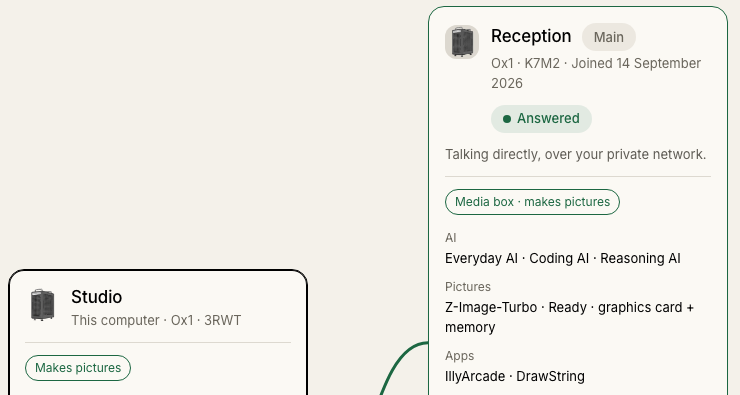
What the states mean
- Answered: the box replied just now.
- Not checked: this box has not asked it yet. It is not a failure.
Reach a box from your laptop
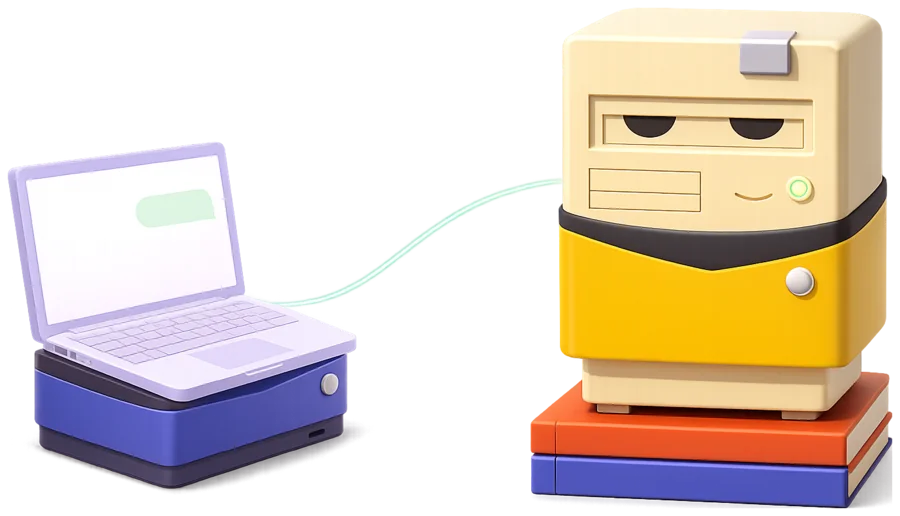
Pair OxOn Desktop with the box at home, then choose the box for any conversation. Reaching your boxes from anywhere is in early access.