Install OxOnOS
From a USB stick, alongside Windows or on an empty disk. No terminal.
Before you start
- A 64-bit PC (x86-64) that boots with UEFI, with 8 GB of memory or more and 60 GB of disk free.
- A USB stick for the image (about 4.4 GB).
- Your Wi-Fi name and password, or a network cable to your router.
- Leave Secure Boot on. OxOnOS starts with it on. If the stick will not start (a “Secure Boot violation” message, or the computer goes straight to Windows), turn on Allow Microsoft 3rd Party UEFI CA in the computer’s start-up settings (the BIOS; on Lenovo it is under Security › Secure Boot, other makers call it Microsoft UEFI CA, Other OS or third-party). Do not turn Secure Boot off: without it Windows Hello (PIN, fingerprint, face sign-in) can stop working.
- If Windows is on the machine: turn off BitLocker and fast startup, and back up anything you care about.
No graphics card is needed. An NVIDIA RTX 20-series or newer is used; no card stops the install, and with an older or non-NVIDIA card answers run on the processor. Check your machine.
Install
- Write the imageRequest the installer on the download page; we send it to you. Write it to the USB stick with the tool you usually use for that.
- Start from the stickStart the computer from the USB stick. Join your Wi-Fi on the installer’s screen, or plug in a network cable.
- Let it check the computerOxOnOS looks at the machine first, then lets you choose alongside Windows (it shrinks Windows to make room, so back up first) or empty disk (everything on that disk is erased).
- Let it installIt runs on its own, typically in nine to fourteen minutes, then sets itself up on first start.
- Say who owns itThe first screen asks for the owner's name. Type yours. Then you can join your fleet.
Check it worked
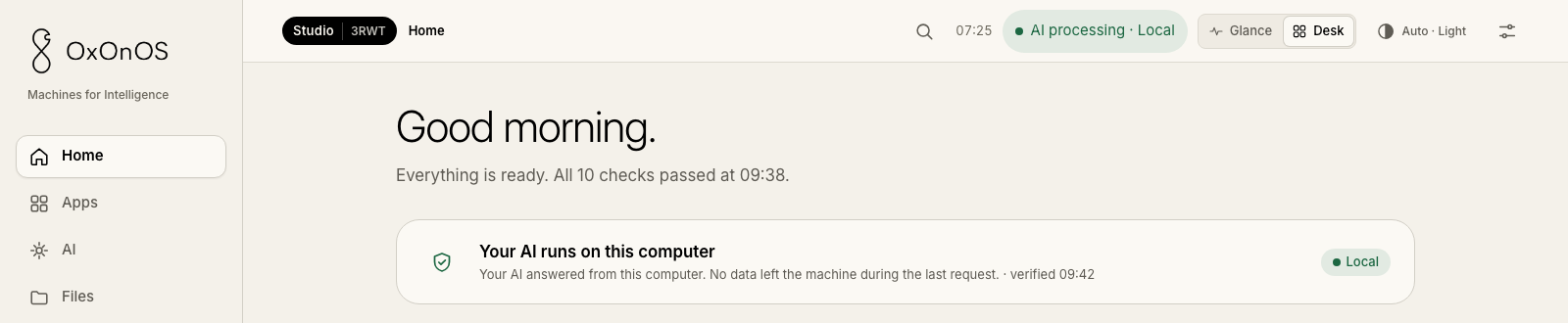
Home shows Everything is ready., and the card under it says where your AI runs.
The first model download
The everyday AI usually comes on the stick. On first start the box checks it and asks it a test question, with no download. If your stick left it out, or that check fails, the box downloads the AI instead and says so on screen. Everything is checked before the box uses it.